

ABA QR – Dual-Currency Code
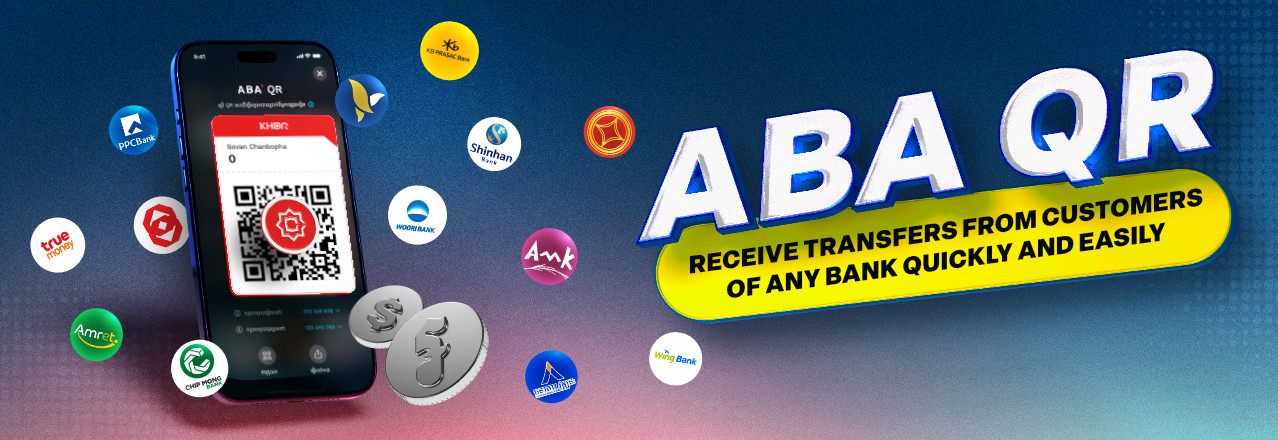
ABA QR lets you accept payments and transfers in KHR or USD with a single QR code – from ABA Mobile users and customers of other banks that support KHQR.
Powered by Bakong, the national payment system, ABA QR handles both currencies seamlessly, helping you get paid faster, smarter, and more flexibly. Just show your ABA QR on the mobile screen or share it as a link via messenger apps.
Key benefits


Flexibility - Coin Receive KHR and USD with one ABA QR – no need for separate codes.

Automatic Currency Match - Automatic Funds go directly into your KHR or USD account based on the currency sent.

Controlled & Secure – Sheild Set a payment amount, ensuring the right amount and currency every time.
How to set a Default Account for ABA QR?
To start receiving payments with ABA QR, you need at least two accounts – one in KHR and one in USD.
- Open your ABA Mobile app and tap the ABA QR button at the top right corner of the screen.
- Your KHR account is set as the default account. If you have multiple KHR accounts, select one on your first access – you can change it anytime. You can also toggle to a USD account if you want to receive payments in US Dollars.
Note: Payments will go to your KHR or USD account depending on the currency sent by the payer. To receive a payment in a specific currency and account, set the amount and select the desired currency when generating your ABA QR.
How to receive money using ABA QR?

Via QR When near the sender, launch your ABA Mobile app and tap the ABA QR button to display your ABA QR code so the sender can scan it with their banking app.

Via Payment LinkTo receive money from another ABA Mobile user who isn’t nearby, tap the Share Code icon below your ABA QR, and send the link via your preferred chat or messenger. The sender can tap it to open their ABA Mobile and finalize the transfer.
How to send money using ABA QR?
Via QR
- Scan the receiver’s ABA QR code with your ABA Mobile app.
- Enter the amount if it hasn’t been set and double-check the amount and currency.
- Confirm the payment with your ABA Mobile PIN or biometric authentication, depending on your settings.
Via Transfer Link
- Tap the receiver’s ABA QR link from chat, messenger, or email – ABA Mobile will open automatically.
- Enter the amount if it hasn’t been set and double-check the amount and currency.
- Confirm the payment with your ABA Mobile PIN or biometric authentication, depending on your settings.
Get the App

Click the icon below to download the application from Apple's App store, Google's Play Store or Huawei's AppGallery. After downloading, simply follow the screen instructions to start mobile banking!


Need help?
Contact us instantly without leaving the ABA Mobile app by tapping the Contact Us button on the app's main screen. Additionally, you can chat with us via Facebook Messenger, on our website, or call us 24/7 hotline at 098 203 203.
General Terms and Conditions, General Terms and Conditions for Online Services, and ABA Mobile Terms and Conditions apply. You need Adobe Reader to view these PDF files.